
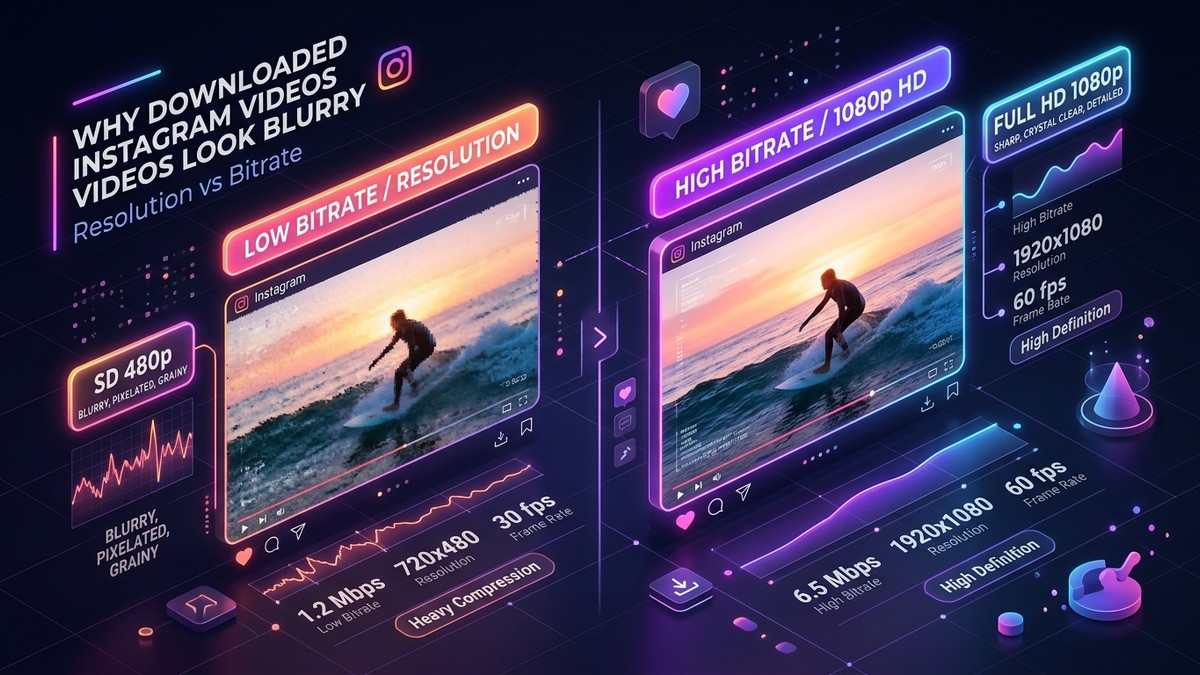
When an Instagram video or Reel looks crisp on your phone screen but turns blurry, pixelated, or soft once downloaded to your camera roll or desktop, it is easy to assume the download tool compromised the quality. In reality, video sharpness on modern social platforms is governed by complex encoding thresholds, adaptive bitrate streaming, and aggressive edge server compression.
No third-party web tool can upscale, reconstruct, or artificially generate image detail that Instagram's ingestion pipeline discarded upon upload. This technical guide unpacks how Instagram processes video uploads, explains why "1080p" can still look blurry, and shows you how to verify the true technical specifications of any downloaded clip.
1. Resolution vs. Bitrate: Why 1080p Does Not Guarantee Sharpness
One of the most persistent misconceptions in digital video is equating pixel resolution with visual quality. Many users assume that because a video measures 1080x1920 pixels, it must look crystal clear.
In digital video encoding, resolution is merely the canvas size—the grid of horizontal and vertical pixels:
- Resolution (Frame Dimensions): The physical dimension of the frame (e.g., 1080x1920 for Reels, 1080x1080 for square posts).
- Bitrate (Data Density): The amount of information encoded per second of video, expressed in Megabits per second (Mbps). Bitrate dictates how much fine detail, color gradation, and motion fidelity are preserved.
- Compression Artifacts: A 1080p video compressed at 1.5 Mbps will exhibit severe macroblocking, color banding, and motion blur during fast action, whereas a 720p video encoded at 6.0 Mbps will look dramatically sharper and cleaner.
| Instagram Media Format | Max Allowed Resolution | Typical Delivery Bitrate | Target Frame Rate | Primary Visual Bottle-Neck |
|---|---|---|---|---|
| Instagram Reels | 1080 x 1920 (9:16) | 3.5 – 5.5 Mbps | 30 / 60 fps | High motion macroblocking in dances & sports |
| Feed Videos | 1080 x 1350 or 1080 x 1080 | 2.5 – 4.0 Mbps | 30 fps | Downscaling of fine textures and text |
| Instagram Stories | 720 x 1280 or 1080 x 1920 | 1.8 – 2.8 Mbps | 30 fps | Aggressive 24h ephemeral cache optimization |
| Carousel Videos | 1080 x 1080 | 2.0 – 3.2 Mbps | 30 fps | Bandwidth capping across multi-slide posts |
As seen in the technical matrix above, Instagram deliberately caps Reels and Stories at relatively modest bitrates to guarantee immediate playback on cellular devices worldwide.
2. The Ingestion Pipeline: What Happens When a Creator Uploads
To understand why a video looks the way it does on Instagram, you must trace its lifecycle through Meta's ingestion pipeline:
- Local App Compression: Before a video even leaves a creator's phone, the Instagram mobile app analyzes the file. If the creator uploaded a 4K 60fps ProRes clip recorded at 80 Mbps, the Instagram app immediately recompresses it on-device to reduce upload bandwidth.
- Server-Side Transcoding (CRF Encoding): Once received on Meta's transcoding clusters, the video is passed through an automated FFmpeg-based pipeline using Constant Rate Factor (CRF) encoding. This dynamic rate control allocates more bits to complex frames (heavy movement, confetti, rushing water) and fewer bits to static scenes (talking heads against a plain wall).
- Rendition Generation: Meta's servers generate multiple renditions of varying resolutions (360p, 480p, 720p, 1080p) to feed its adaptive bitrate streaming engine.
- Thumbnail vs. Stream Confusion: Often, when an online tool displays a preview, it shows the static cover JPEG thumbnail (often compressed to 640x640) rather than the streaming MP4. If a user tries to save this preview thumbnail, they end up with a low-res image instead of the video file.
At StorySave, our Instagram Video Downloader and Instagram Reels Downloader bypass low-res intermediate previews and directly query Meta's Content Delivery Network for the highest bitrate progressive MP4 stream available for that specific post.
3. The Myth of "4K Instagram Downloaders"
Many competitor websites and spammy apps advertise "Download Instagram Videos in 4K Ultra HD". This claim is technically impossible and factually deceptive:
- Instagram does not store 4K video: Instagram's servers do not preserve 4K (3840x2160) video assets. Any 4K upload is automatically downsampled to 1080p during ingestion.
- Upscaling creates artificial blur: Any service claiming to output 4K Instagram video is simply running a local bicubic interpolation or basic AI sharpening filter over a 1080p stream. This process inflates the file size by 400% without adding genuine optical resolution, often introducing ringing artifacts and artificial grain.
- The StorySave Commitment: StorySave never alters, re-encodes, or artificially inflates media files. We deliver the exact byte-for-byte master stream provided by Instagram's CDN at its native maximum bitrate.
4. How to Inspect Your Downloaded Video Metadata
If you want to verify whether a video you downloaded from StorySave is the true 1080p master file:
On Windows
- Right-click the downloaded
.mp4file in File Explorer and choose Properties. - Switch to the Details tab.
- Check the Video section:
- Frame width: Should read
1080 - Frame height: Should read
1920(for Reels/Stories) or1080/1350(for feed posts) - Total bitrate: Should typically range between
2500 kbpsand5500 kbps.
- Frame width: Should read
On macOS
- Open the file in QuickTime Player.
- Press
Cmd + Ito open the Movie Inspector window. - Review the Format line for resolution (e.g.,
1080 x 1920) and data rate.
On iPhone (iOS 15+)
- Open the video in the Photos app.
- Swipe up on the video to reveal the EXIF and format metadata card.
- You will see the container resolution (e.g.,
1080p • 1080 × 1920), file size, and codec (H.264).
5. Summary Checklist: Maximizing Download Quality
To ensure you always obtain the cleanest, highest-bitrate video possible:
- Always use direct links from public posts or creators who upload high-fidelity source footage.
- Avoid recording your phone screen with screen recorders, which compresses the video twice (once by Instagram, once by your phone's screen recorder).
- Paste your link into StorySave Reels Downloader or Story Downloader to retrieve the original progressive CDN stream directly.
- Inspect the file in a native media player rather than judging quality through a messaging app preview (such as WhatsApp or Messenger), which aggressively compresses media upon sharing.